
What is H5P? #
H5P is a free, open-source content creator that allows you to easily create, share, and reuse interactive HTML5 content and applications. H5P activities can be created and embedded directly in Moodle or WordPress, making it easy to add rich, interactive learning content to your courses.
What Can You Use it For? #
Uses
H5P has a large number of activities and potential applications. It is best used for formative assessment and low-stakes, interactive learning activities. The activity below highlights some of the more common activities, but it is not an exhaustive list – there are even more! You will note that many of the activities can fit into more than one category, depending on how you use them. H5P can support a variety of learning activities not listed here, such as problem solving, conceptual learning, reflection, and more.
Bring h5p from lti site over
Benefits
- Free to use.
- Only requires a web browser.
- Easily share your content across platforms, or reuse and adapt existing content.
- Over 50 activities and application to choose from.
- Integrates with Moodle and TRUbox WordPress sites, and is mobile friendly.
- Provides immediate feedback.
How Can You Access it? #
H5P activities can be created directly in Moodle or WordPress! Refer to the short video or written instructions below.
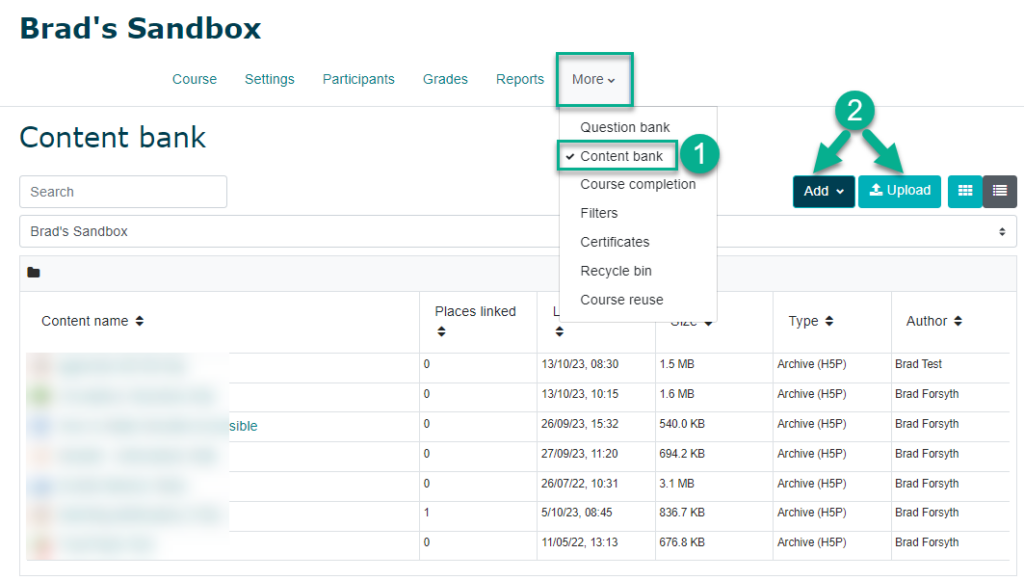
- Select “Content Bank” in the left-hand navigation menu.
Note: The Content is tied to both your Moodle profile and the course, but don’t worry, your H5P content can easily be moved to a different course (see below). - Select “Add” to create new H5P content or “Upload” to add an existing .h5p file type
To add an H5P activity to your course:
- Ensure editing is on
- Select “Add an Activity or Resource” and then select the “H5P” activity
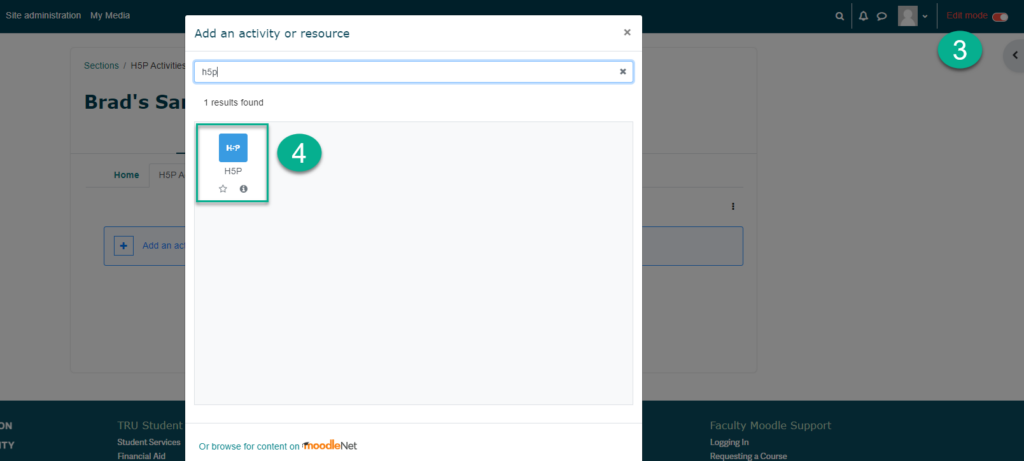
- Give your activity a title, and be sure to go through the settings, including the H5P options and whether you would like it to be a graded activity. To add your H5P activity, select the “Add file” icon. You will be able to add an activity directly from your content bank or upload a .h5p file.

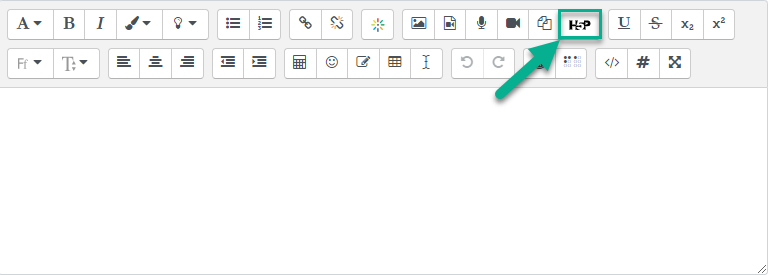
- Alternatively, if you would like to embed your H5P activity directly into your Moodle content, such as in a label or book, you can do so by selecting the H5P icon in the Moodle editor. (Note: embedded H5P activities will not connect to Moodle’s gradebook).
H5P integrates with WordPress, meaning you can add activities to your site created at trubox.ca!
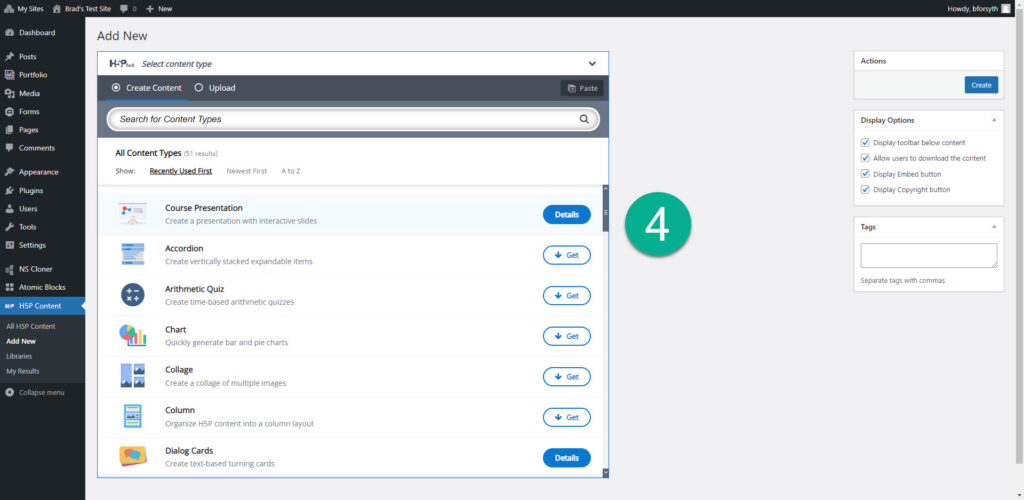
- In your site’s dashboard, ensure you have activated the H5P plugin
- Once activated, you will see “H5P Content” on your dashboard menu
- Any existing activities will be listed and are able to be edited. Select “Add New” to create a new activity.
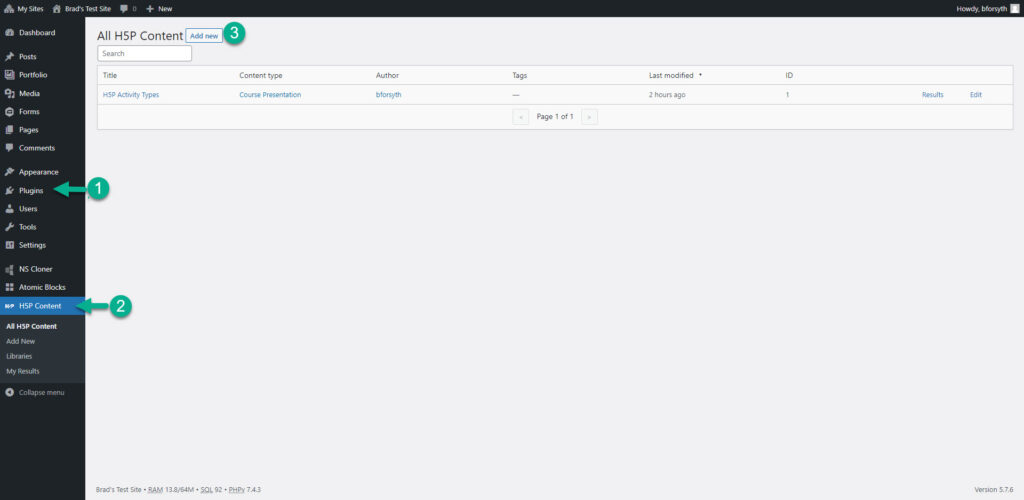
- Select your activity type and create away! You can also upload a .h5p file
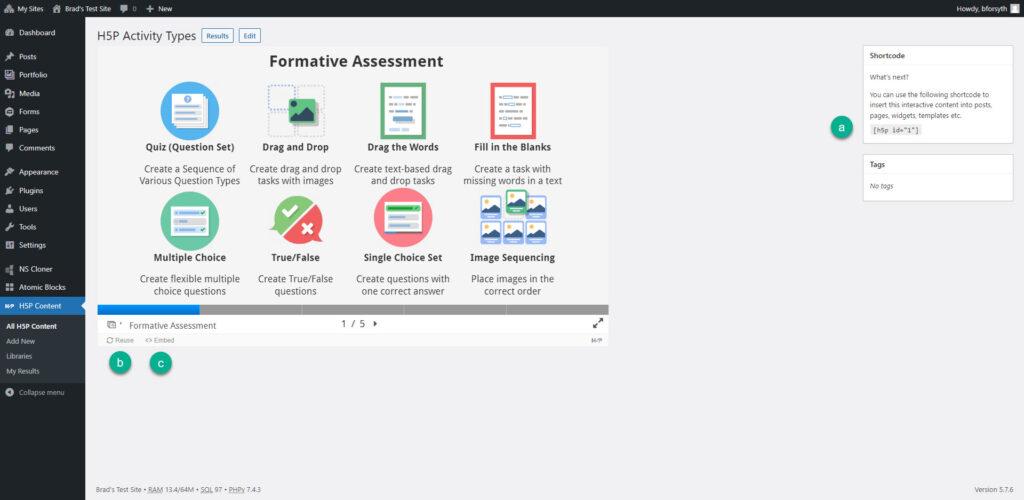
- Once your activity is complete, there are a few ways to share it:
(a) Copy and paste the shortcode into your WordPress post or page
(b) “Select “Reuse” to download your activity as a .h5p file, which can be uploaded to WordPress or Moodle
(c) Select “Embed” to copy an iframe embed code
How Do You Use it? #
H5P is quite intuitive and easy to use, but each activity works a bit differently. Refer to H5P’s Examples and Downloads page and Tutorials for Authors.
Further Resources
Be sure to also check out some of our past H5P workshop recordings:
H5P Build It: This workshop provides an overview of building, borrowing, and embedding H5P objects in both Moodle and WordPress. It also looks at the various settings available for H5P activities in Moodle, such as how to set it as an ungraded or graded activity.
H5P Party: This workshop similarly provides an overview of building, borrowing, and embedding H5P objects in both Moodle and WordPress. It also takes a deeper dive into reusing and adapting H5P content from external sources, such as from the eCampusOntario H5P Studio Catalogue of H5P Content. A discussion regarding licensing and copyright is also included.
What Support is Available? #
Contact us at learningtech@tru.ca or by stopping by our virtual office hours and we will be happy assist you!


